Email guidesOutlook.com / Hotmail
Connect Outlook.com
Your email is Outlook.com or Hotmail. Forward your enquiries to your Venuo address, vXX@desk.venuo.co.za. It takes about three minutes.
vXX@desk.venuo.co.za stands for your own Venuo address. After you sign up, your dashboard’s Connect page shows this guide with your address filled in.
Step 1: On a computer, sign in at outlook.com with the inbox that receives your enquiries.
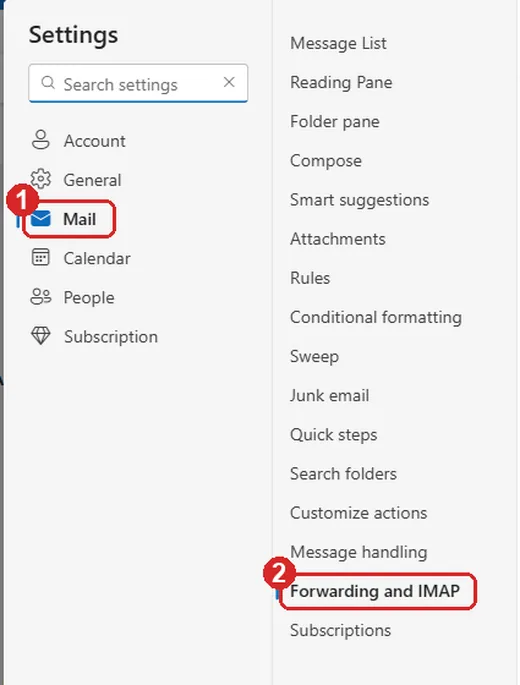
Step 2: Click ⚙ (Settings, top right) → Mail (1) → Forwarding and IMAP (2).
Step 3: If Microsoft shows "Sign in and verify your account to forward your email", click Sign in and finish its check first. The forwarding switch only appears afterwards.
Step 4: Turn on "Enable forwarding" (1) and type vXX@desk.venuo.co.za in "Forward my email to" (2).
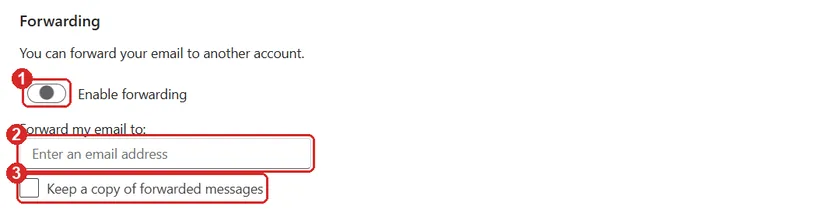
Step 5: Tick "Keep a copy of forwarded messages" (3), then click Save at the bottom right. Without that tick, forwarded mail leaves your inbox, and nothing is forwarded until you click Save.
Step 6: Test it: from another email address, send a short enquiry the way couples do. When it reaches Venuo, your Venuo Connect page shows "Connected".
Good to know
- Venuo gets a copy. Your inbox keeps every enquiry, and you can still answer anyone yourself.
- Is forwarding greyed out on a new account? Microsoft sometimes asks you to verify the account first: follow its prompt, then try again. The labels come from Microsoft's help pages: check them on screen.