Email guidesGoogle Workspace (Gmail with your own domain)
Connect Google Workspace
Your email is Gmail on your own domain. Forward your enquiries to your Venuo address, vXX@desk.venuo.co.za. It takes about five minutes.
vXX@desk.venuo.co.za stands for your own Venuo address. After you sign up, your dashboard’s Connect page shows this guide with your address filled in.
Step 1: On a computer (the Gmail app can't do this), open Gmail and sign in to the inbox that receives your enquiries.
Step 2: Click the ⚙ gear (top right) → See all settings. Then click the "Forwarding and POP/IMAP" tab (1) and the "Add a forwarding address" button (2).

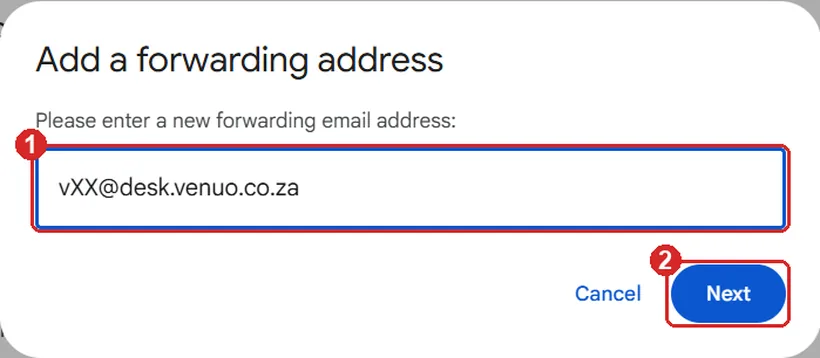
Step 3: Type vXX@desk.venuo.co.za in the box and click Next. Google may now ask you to confirm it's you (your password or a phone check): that's normal, follow it. In the small window that opens, click Proceed, then OK.
Step 4: Google sends a confirmation code to Venuo. Within a minute it appears in this same guide on your Venuo dashboard (app.venuo.co.za → Email setup): refresh it until it shows.
Step 5: Back in Gmail's Forwarding and POP/IMAP tab, type the code in the box next to "Verify" and click Verify.
Step 6: Tick "Forward a copy of incoming mail to", choose vXX@desk.venuo.co.za in the list, and keep "keep Gmail's copy in the Inbox". Then scroll to the bottom and click Save Changes. Forwarding does not start until you do.
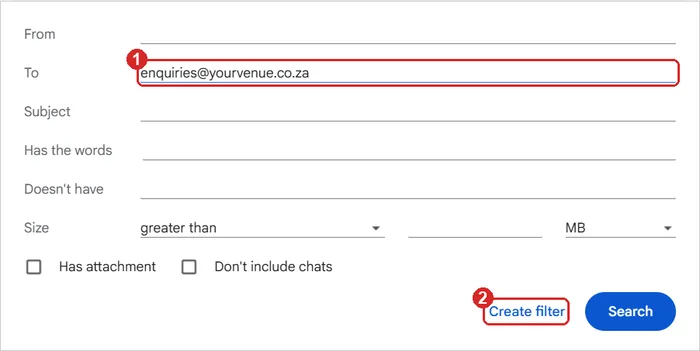
Step 7: Stop Gmail filing enquiries as spam, because Gmail never forwards mail it thinks is spam. Settings → Filters and Blocked Addresses → Create a new filter. In "To", type your enquiry address (the one couples write to) (1) and click Create filter (2).
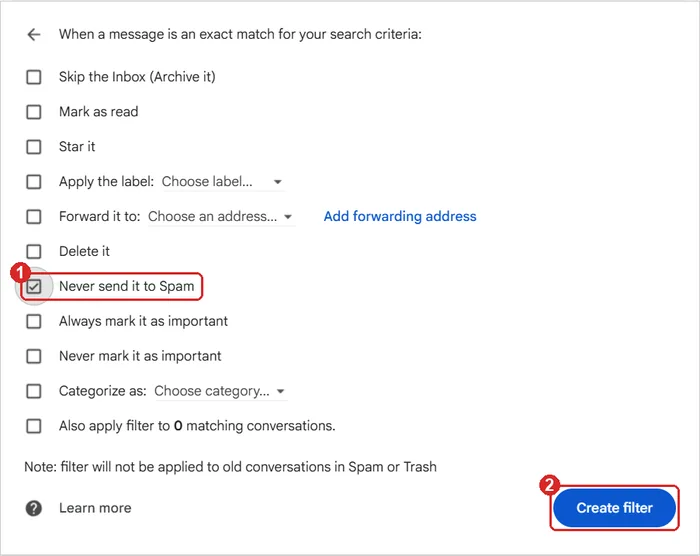
Step 8: Tick "Never send it to Spam" (1), then click Create filter (2).
Step 9: Test it: from another email address, send a short enquiry to your usual enquiry address. When it reaches Venuo, your Venuo Connect page shows "Connected".
Good to know
- Venuo gets a copy. Your inbox keeps every enquiry, and you can still answer anyone yourself.
- Is "Add a forwarding address" missing or greyed out? Your Workspace admin must allow automatic forwarding first: admin.google.com → Apps → Google Workspace → Gmail → End User Access → Automatic forwarding → allow it → Save. It can take up to an hour to apply. The labels come from Google's help pages: check them on screen. Still no "Add a forwarding address" button after that? Email hello@venuo.co.za and we'll set it up with you.